If you use MemberPress courses as your LMS, you’ll know that it works well, but is restricted in a lot of ways.
A major problem I had was not being able to only let my users start a Memberpress course, if they completed a prerequisite course beforehand.
EDIT September 9, 2025: MemberPress solved this problem natively by adding a new “Course Completed” access rule to MemberPress 1.12.7 (changelog). This makes the topic of this article irrelevant, you can retire the method outlined below and implement the new native MemberPress solution.
Thankfully, Memberpress has lots of action hooks that can be used to achieve mostly everything you would need, including granting sequential access to a series of courses.
Granting sequential course access
To make things as light weight and plugin-free as possible, we will use standard WordPress and MemberPress functions.
This is how the solution will work
- Once a user completes a course, we’ll use Memberpress’s mpcs_completed_course hook.
- We’ll set the user a custom capability that shows they completed the course.
- We will use standard Memberpress Rules based on capabilities to restrict access to courses the user shouldn’t be viewing yet.
Very simple and works beautifully. I’m surprised this isn’t part of Memberpress Courses.
Step 1.
Before we can grant capabilities to users, we need to create these capabilities in WordPress. Let’s say you have a photography course series with 5 levels:
- Photography Basics (Level 1)
- Composition (Level 2)
- Lighting (Level 3)
- Advanced Techniques (Level 4)
- Professional Portfolio (Level 5)
First, we need to create capabilities that will control access to each level except the first one (which will be controlled by membership). Create a new PHP file in your theme’s directory (or wherever you keep your custom functions) and add this code:
php// Run this once, then comment it out or delete it
function create_course_capabilities_once() {
    $admin_role = get_role('administrator');
    $capabilities = [
        'access_photography_level_2',
        'access_photography_level_3',
        'access_photography_level_4',
        'access_photography_level_5'
    ];

    foreach ($capabilities as $capability) {
        $admin_role->add_cap($capability);
    }
}
create_course_capabilities_once();Add this code to your functions.php or custom plugin file, run your site once to execute it, then immediately comment out or delete the code. These capabilities are now permanently stored in your WordPress database and don’t need to be created again.
Why is this needed?
WordPress requires capabilities to be registered in the system before they can be assigned to users. By adding them to the administrator role first, we properly register them in WordPress’s capability system.
This is actually a WP security feature, so you don’t go around adding capabilities at random.
Step 2: Implementing the Course Completion Handler
When a user completes a course, MemberPress triggers the mpcs_completed_course hook and passes a UserProgress object. To understand what data we have available, I first logged this object to WordPress’s debug log. Here’s what the object contains:
phpmemberpress\courses\models\UserProgress Object
(
    [rec:protected] => stdClass Object
        (
            [id] => 20                           // Progress record ID
            [user_id] => 2                       // WordPress User ID
            [lesson_id] => 1002                  // ID of the last completed lesson
            [course_id] => 934                   // ID of the completed course
            [progress] => 100                    // Percentage complete
            [created_at] => 2025-02-19 10:33:58  // When progress started
            [completed_at] => 2025-02-19 10:33:58 // When course was completed
        )
)
This object gives us everything we need: the user’s ID and the course they completed. We’ll use these to grant access to the next course.
Here’s the implementation:
php// Define capabilities and course relationships
function define_course_capabilities() {
    return [
        123  => 'access_photography_level_2',  // Replace 123 with Level 1 course ID
        456  => 'access_photography_level_3',  // Replace 456 with Level 2 course ID
        789  => 'access_photography_level_4',  // Replace 789 with Level 3 course ID
        012  => 'access_photography_level_5',  // Replace 012 with Level 4 course ID
        345  => null                          // Replace 345 with Level 5 course ID
    ];
}

// Handle course completion and grant capability for next course
function handle_course_completion($user_progress) {
    $course_caps = define_course_capabilities();

    // Access the completed course ID from the UserProgress object
    $completed_course_id = $user_progress->rec->course_id;
    $user_id = $user_progress->rec->user_id;

    // If there's a next course capability defined, grant it
    if (isset($course_caps[$completed_course_id]) && $course_caps[$completed_course_id] !== null) {
        $user = new WP_User($user_id);
        $user->add_cap($course_caps[$completed_course_id]);
    }
}
add_action('mpcs_completed_course', 'handle_course_completion');
Things to note:
- The
$user_progressobject is protected, but we can access its properties through therecproperty - We only need
course_idanduser_idfor our purpose - The
progressvalue of 100 confirms the course was fully completed - You can use the
completed_attimestamp if you need to track when capabilities were granted
So how is course capability granted?
- The MemberPress hook (
mpcs_completed_course) triggers the functionhandle_course_completion()when a user finishes a course, passing in theUserProgressobject. - Inside
handle_course_completion(), the functiondefine_course_capabilities()is called to load the map of course IDs linked to their “next course” capabilities. - The function reads the
course_idanduser_idvalues from theUserProgressobject and checks if the completed course exists in the capabilities map. - If a match is found (and the mapped value is not empty), a
WP_Userobject is created that loads the existing user’s data from the database, and the mapped capability is added to their account.
Finding Your Course IDs:
Replace the example course IDs (123, 456, etc.) with your actual MemberPress course IDs. To find these:
- Go to MP Courses in your WordPress admin
- Hover over the “Edit” link of each course
- Look at the URL in your browser’s status bar
- The number after “post=” is your course ID
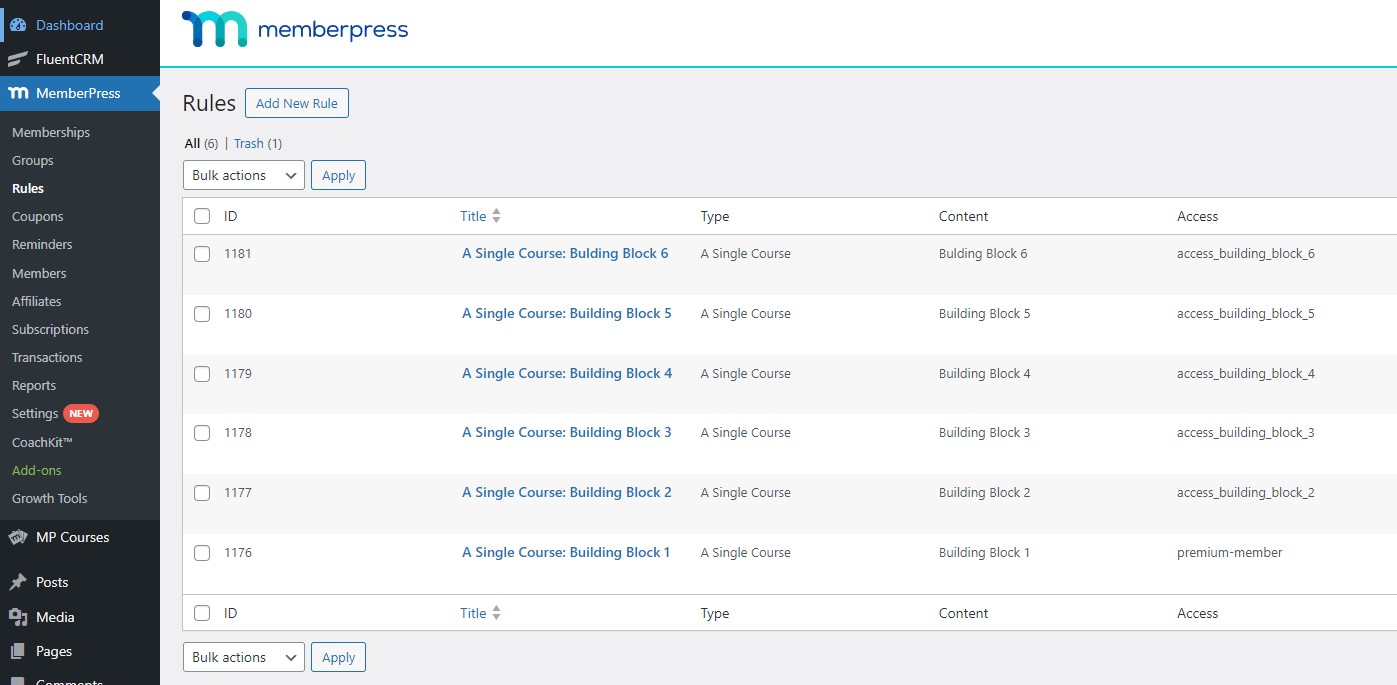
Step 3: Setting Up MemberPress Rules
Finally, we need to create MemberPress rules to restrict access based on these capabilities.
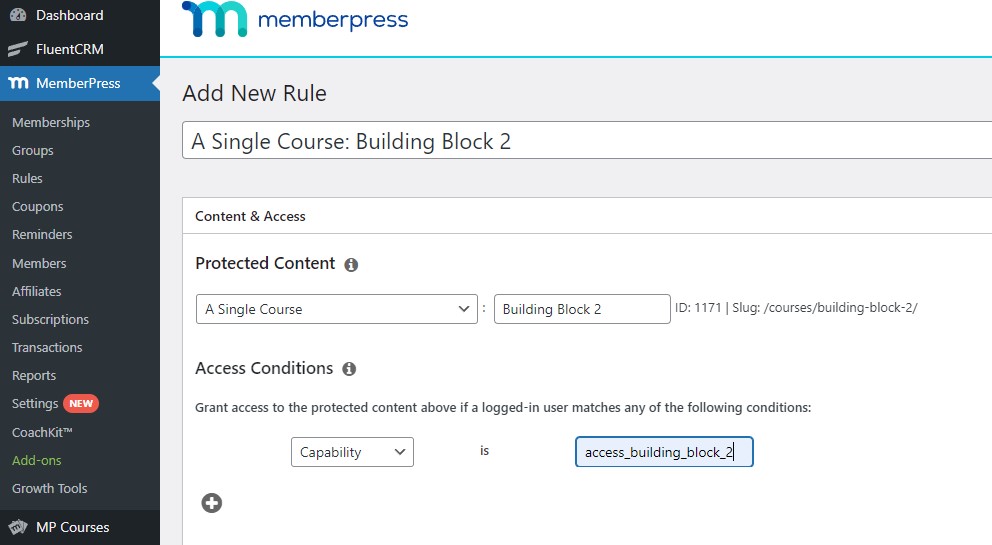
- Go to MemberPress → Rules → Add New
- For each course (except Level 1), create a rule:
- Under “Content & Access”, select your course
- Under “Access Conditions”, choose “Capability”
- Enter the corresponding capability (e.g.,
access_photography_level_2for Level 2) - Save the rule
For Level 1, create a rule that only requires some kind of membership (no capability needed).
It should look like this in the end, this is taken from a live site:
How It All Works Together
- New members get access to Level 1 through their membership
- When they complete Level 1, the hook grants them the capability for Level 2
- The MemberPress rule for Level 2 checks for this capability
- This continues through all levels
- The final level (Level 5) has
nullas its capability since there’s no next level
You can verify the system works by:
- Checking user capabilities in the wp_usermeta table
- Testing course access with a test user
- Completing courses and verifying next-level access
This solution is lightweight, uses native WordPress functionality, and integrates seamlessly with MemberPress’s existing systems.
You’re welcome 🙂