Checkout was broken.
Members trying to sign up were hitting errors.
Transactions were showing as “pending” in the backend, and I had no idea what was going on.
Nothing I found online matched what I was seeing, but MemberPress support nailed it down.
Two separate errors. Two separate fixes. Caused by the same root issue, stale Stripe IDs sitting in your WordPress database that no longer match the Stripe account you’re currently using.
What Actually Caused This MemberPress-Stripe Error
The most likely culprit is switching Stripe accounts at some point. Maybe you connected a new account to MemberPress, or reconnected the same one after something broke.
Either way, MemberPress stores Stripe-related IDs in the WordPress database, things like customer IDs (cus_xxxx) and plan/price IDs (plan_xxxx).
When those IDs reference an account that’s no longer connected to your site, Stripe throws an error because it can’t find what MemberPress is asking for.
MemberPress does actually document the account-switching issue, there’s a specific procedure you’re supposed to follow when moving to a different Stripe account. But if you skip it, or didn’t realize your situation even counted as a “switch” (which is what happened to me, I think), you’ll probably end up exactly where I ended up.
The Two Errors
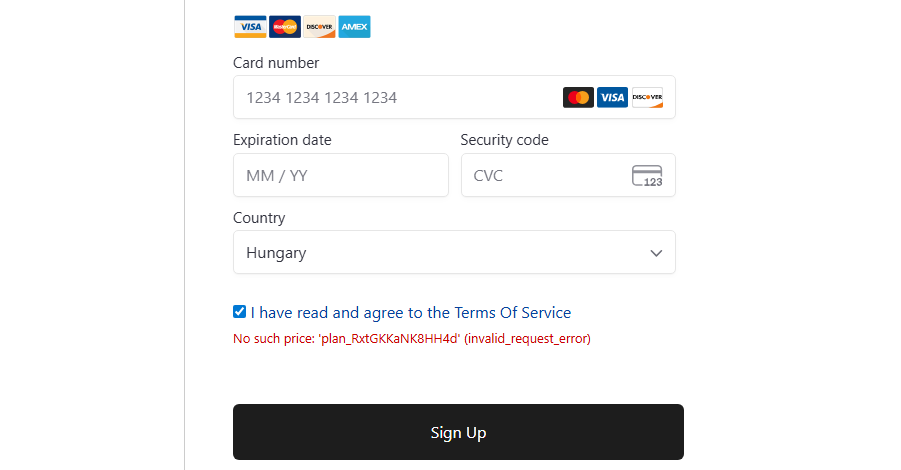
Here’s what each one looks like on the checkout page, so you can check if you’re dealing with the same thing:
| Error | What It Means |
|---|---|
No such customer: 'cus_RANDOMSTRING' | A Stripe customer ID in WordPress doesn’t exist in the connected Stripe account |
No such price: 'plan_ | A Stripe plan/price ID cached in WordPress doesn’t exist in the connected Stripe account |
The exact cus_ and plan_ IDs are of course unique to your installation.
Both errors kill checkout entirely. The confusing part is the transaction shows up as “pending” in MemberPress, so it looks like something is processing. It isn’t, the payment just doesn’t go through at all.
Fix #1: The Missing Customer ID Error
This one showed up first. People trying to sign up were getting that cus_xxxx not found message. According to MemberPress support, this happens because MemberPress stores Stripe customer IDs in the wp_usermeta table, and when those IDs don’t match the currently connected Stripe account, checkout falls apart.
Back up your database before you do anything. Both fixes use DELETE statements and you really don’t want to run these on a live site without something to restore from if it goes sideways.
After backing up my database I ran this query (via phpMyAdmin, WP-CLI, or whatever you normally use):
DELETE FROM wp_postmeta WHERE meta_key LIKE '_mepr_stripe%';A few things to know about this:
- If your WordPress install uses a custom table prefix instead of the default
wp_, update the query to match your table prefix - This only removes Stripe-related user metadata, not transactions or subscriptions (those live in their own tables, specifically
wp_mepr_transactionsandwp_mepr_subscriptions) - After running it, MemberPress will automatically create fresh Stripe customer records the next time someone checks out
I asked support directly, whether this would wipe existing user data like transaction history. The answer was no. Its just clearing the cached reference IDs, the actual records stay right where they are.
Fix #2: The Missing Plan ID Error
After running the first fix, the customer ID error cleared. But then a different error showed up on checkout, and only for my recurring membership:
DELETE FROM wp_postmeta WHERE meta_key LIKE '_mepr_stripe%';My fixed-term membership worked fine. Just the recurring one was broken. I duplicated the recurring membership to test (seemed like the quickest way to check this), and the duplicate checked out with zero issues. So whatever was wrong was specific to the original membership’s stored data.
As it turns out this is a completely separate issue that lives in a different database table. MemberPress caches the Stripe plan ID for each membership in wp_postmeta. When that plan ID was created under an old or disconnected Stripe account, it no longer exists in your current account and checkout fails trying to reference it.
Fix:
DELETE FROM wp_postmeta WHERE meta_key LIKE '_mepr_stripe%';Back up first, again, yes. Running this clears the cached plan IDs from your membership settings. The next time someone goes to checkout, MemberPress will automatically generate a fresh plan in your currently connected Stripe account. Existing subscriptions aren’t touched, transaction history is fine.
After running it the original recurring membership was working again. I deleted the duplicate I’d made.
The Full Fix, Step by Step
Back up your database (before anything else, every time)
- Run the first query to clear stale Stripe customer metadata:
DELETE FROM wp_usermeta WHERE meta_key LIKE '_mepr_stripe%'; - Test checkout. If it works, you’re done
- If you now get a
No such priceerror on a recurring membership, run this:DELETE FROM wp_postmeta WHERE meta_key LIKE '_mepr_stripe%'; - Test checkout again
You may only need one of these depending on your situation. Running the first fix actually surfaced the second problem for me, it had apparently been sitting there already. Could be yours only involves one of them.
Why This Is So Hard to Find Online
I think the reason there’s almost nothing about this online is that it really only hits people who’ve switched or reconnected a Stripe account at some point. Most site owners set up MemberPress with Stripe once and never touch it, so they never run into this. But if you’ve ever migrated a site, tested with a different Stripe account, or had to reconnect for any reason, this can catch you off guard (and it won’t be obvious at all why it’s happening, the error messages aren’t exactly helpful on their own).
The errors look alarming, but it’s an easy fix.
Hope this helps someone, please leave a comment if it did 🙂